Install Dispatch Studio
Windows only for now. Setup takes a couple of minutes, needs no administrator rights, and lets you choose which parts of the app you want.
What you need
- Windows 10 or 11, 64-bit.
- About 470 MB of free disk space.
- Nothing else to install first. The Java the engines run on comes with the app.
- For the Observe mode, a Dispatch APM server to connect to. The APM server guide sets one up.
The six steps
Get the installer
Setup is one file, about 280 MB: the setup program and the app together. The download is not published yet, and this page will link it as soon as it is.
Run it
Double-click the file. If Dispatch Studio is already open, setup says so and offers to close it; it will not carry on while Studio is open, so nothing is replaced under you.
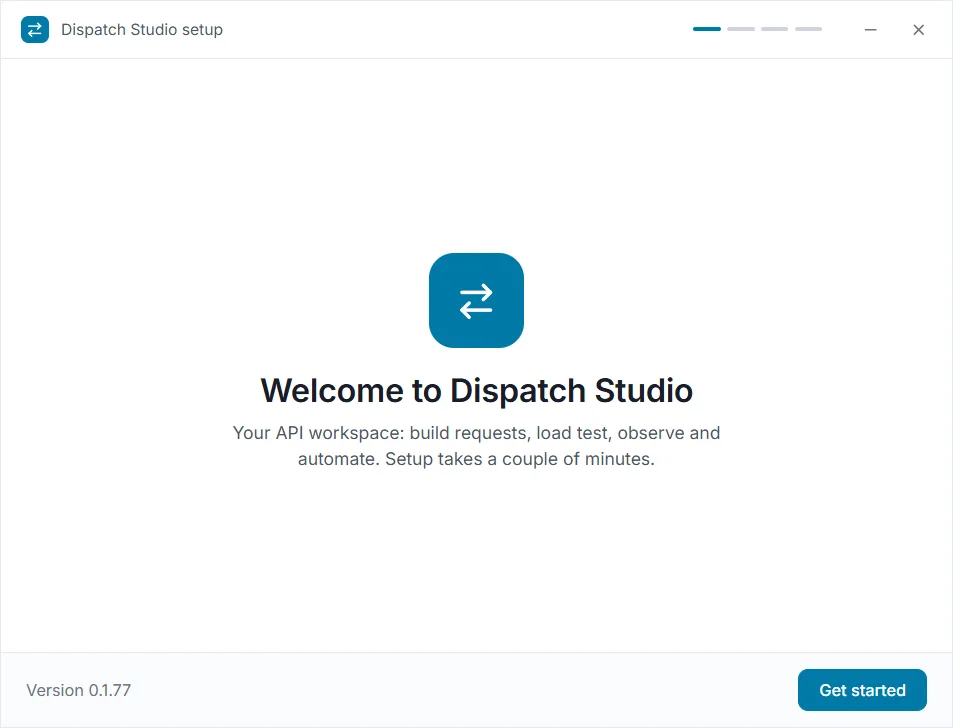
Press Get started
The first screen shows the version that will be installed and, if you already have Dispatch Studio, which version is on this computer. Press Get started, or Update if it is already there.
Pick the modes you will use
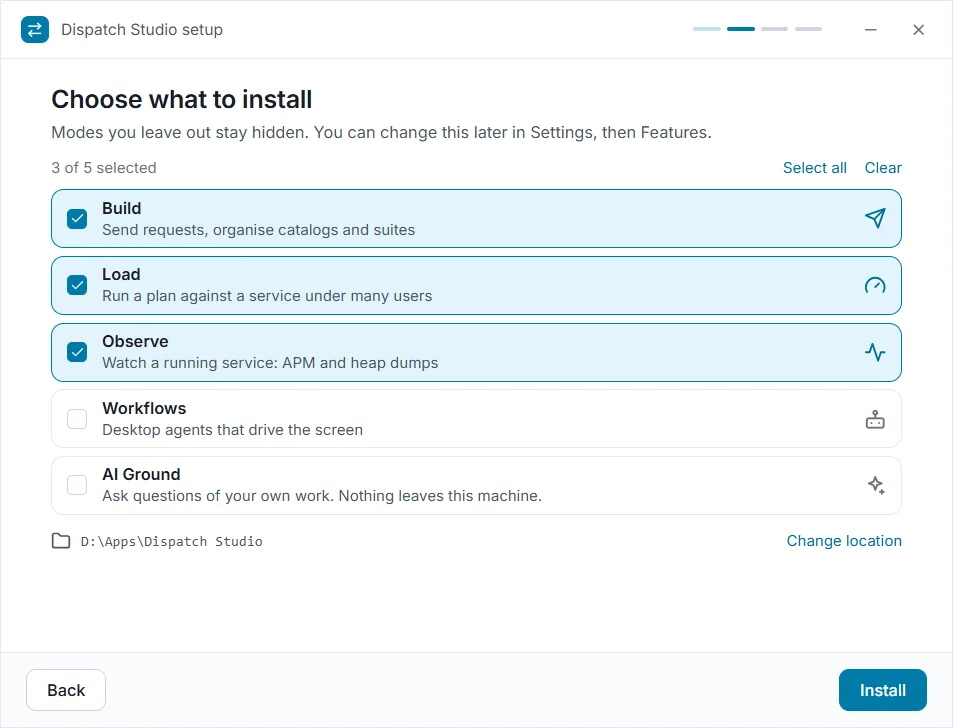
Dispatch Studio has five modes: Build, Load, Observe, Workflows and AI Ground. Tick the ones you want. A mode you leave out is hidden from the app, with no tab, no shortcut and no entry in search, and nothing of yours is deleted. At least one must stay ticked.
The install folder is shown under the list, with a Change location link. Everything starts ticked, so pressing Install straight away gives you the whole app. On an update, your earlier choice is already ticked.
Watch it install
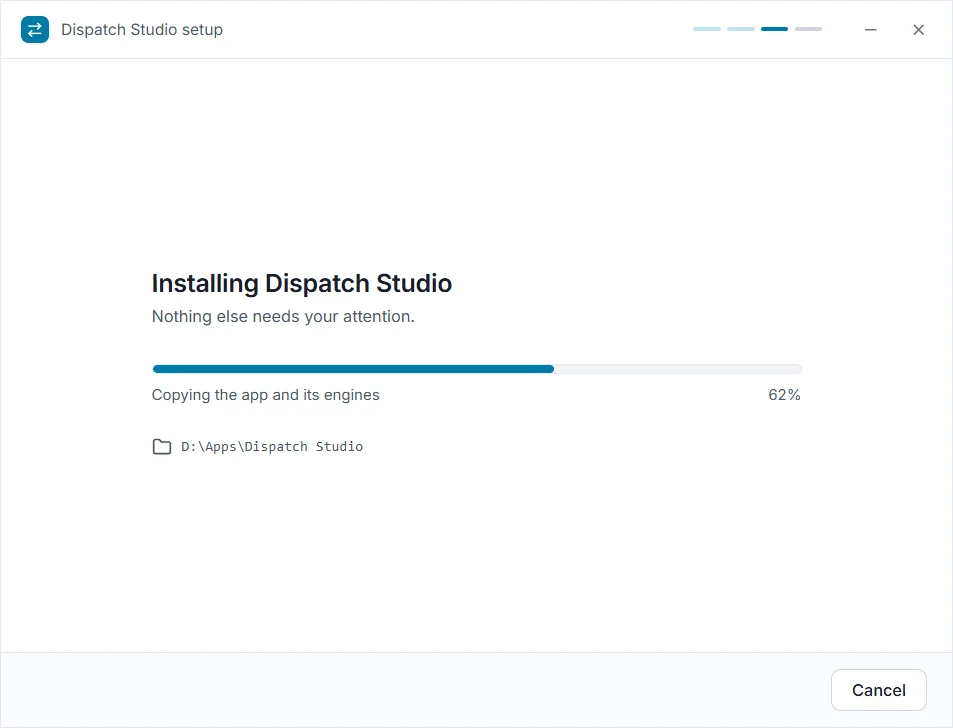
A progress bar shows how much has been copied, with a line saying what is happening. If a step takes more than a couple of seconds, a loader says so rather than leaving the window looking stuck. Cancel stops setup; files already copied stay.
Open Dispatch Studio
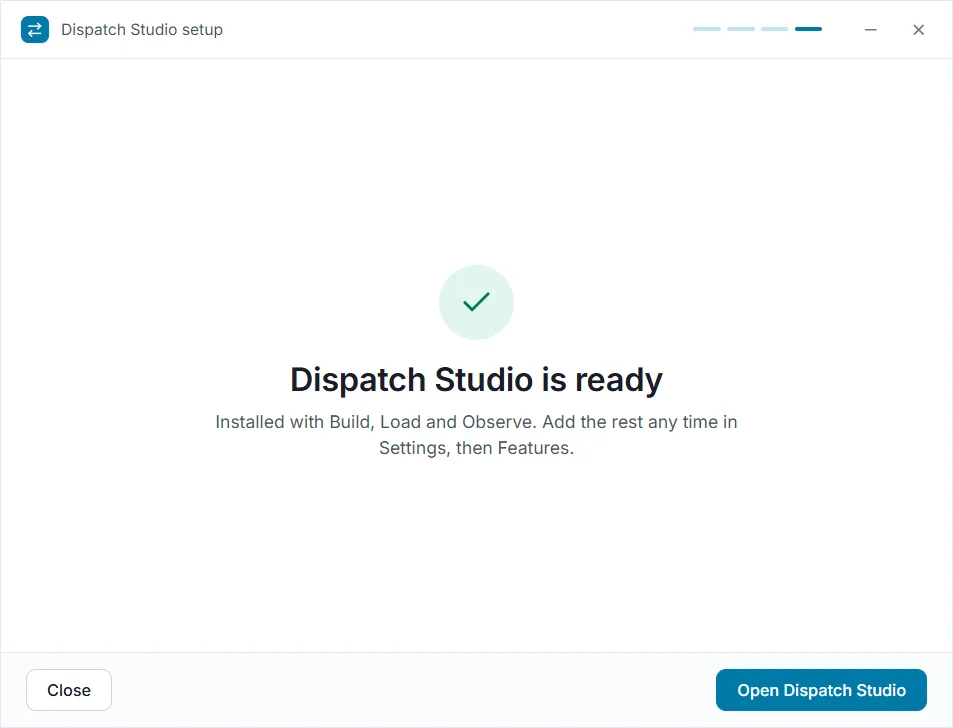
The last screen names what was installed. Press Open Dispatch Studio. Your projects and settings are kept in your own user folder, not in the install folder, so updating or removing the app never touches them.
Changing it later
Modes. Open Settings, then Features, tick or untick a mode and press Apply. The change takes effect when Studio restarts. Because nothing is deleted, turning a mode back on shows everything in it again.
Updating. Run the newer setup. It keeps your projects and your choice of modes.
Removing. Open Windows Settings, then Apps, then Dispatch Studio, then Uninstall. Your projects stay in your user folder until you delete them yourself.
Installing for a team
The installer takes the same choices on the command line, with no windows. /FEATURES= lists the modes (build, load, observe, workflows, ai) in any order; with nothing listed you get all five, and an update keeps what was chosen before.
# for installing on other people's machines
Dispatch-Studio-Setup.exe /S /currentuser /FEATURES=build,load /D=D:\Apps\Dispatch Studio